Bookmarks let you flag a specific moment in a book so you can jump straight back to it later, with an optional note to remind you why it mattered.
Adding a bookmark
Open Bookmarks
Tap the bookmark icon in the player's bottom toolbar.
Tap the + button
This opens a field for an optional note.
Add a note and confirm
Type up to 200 characters, then tap Add Bookmark. Or leave it blank and tap Add Bookmark to save the moment with no note attached.
Viewing and managing bookmarks
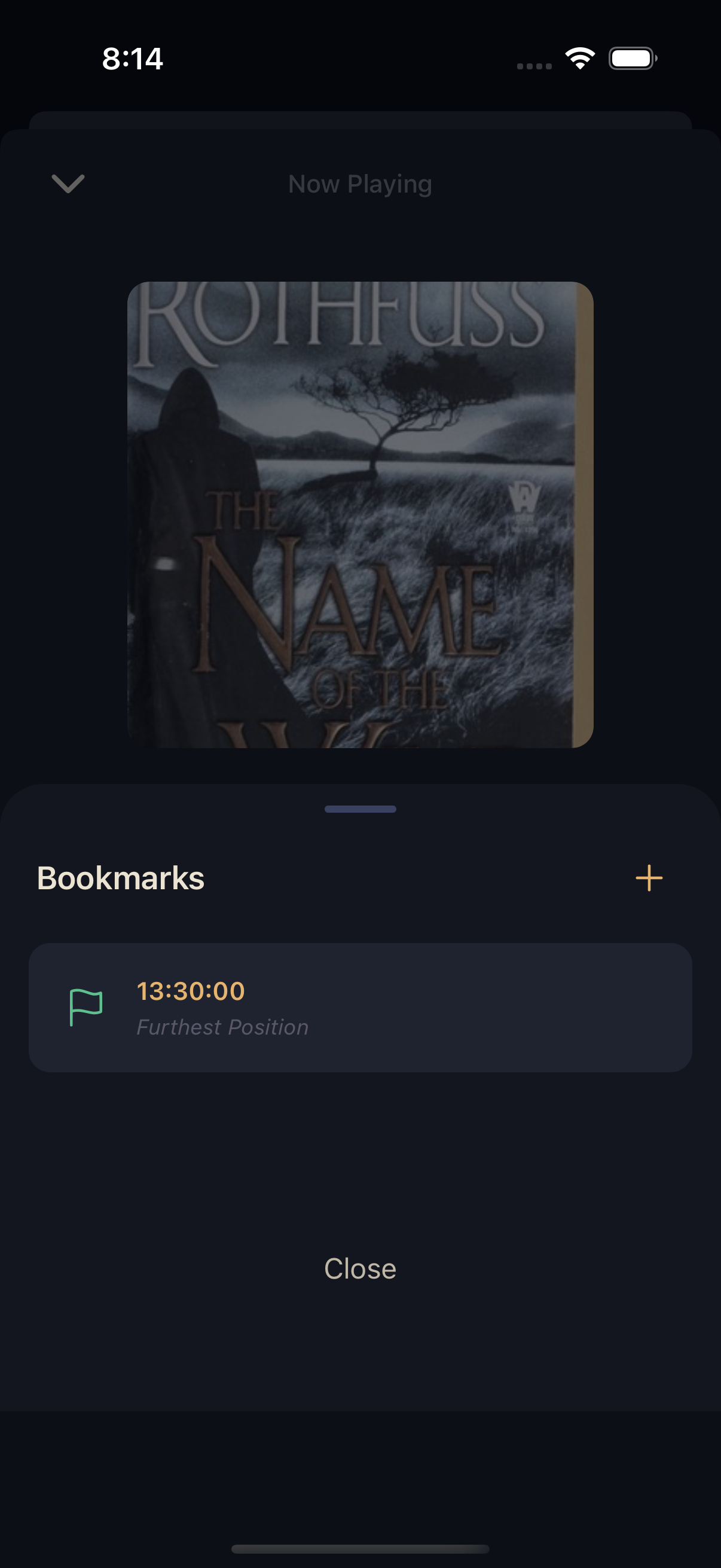
The Bookmarks sheet lists everything you've added, each showing its timestamp and chapter. Tap any bookmark to jump straight to it. Your own bookmarks can be edited or removed — tap the pencil icon to change the note, or the trash icon to delete it after confirming.
Furthest Position
Alongside anything you add yourself, Squabble automatically keeps one more marker: Furthest Position — the furthest point you've reached in the book. It updates as you listen and can't be edited or deleted; it's always there, always current.
If you lose your place — say a Sleep Timer stopped playback overnight — open Bookmarks and tap Furthest Position to snap straight back to it.